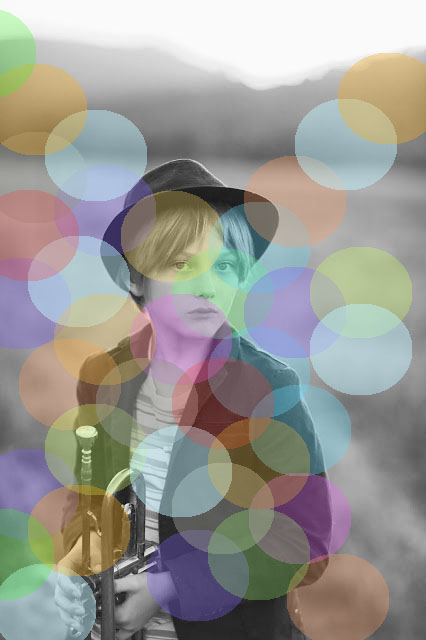
Shapes Shapes and More Shapes in Photoshop
Step 1
- Pick your FAVORITE photograph you have taken
- This must be a photograph you have taken
Step 2
- Open it in Photoshop
- File-Open
![]()
Step 3a
- Go to Image
- Adjustments
- Black and White
- Adjustments
![]()
Step 3b
- Photograph will now be black and white
Step 4a:
- Go to the Shape Tool
- Right Click on the Shape Tool
![]()
Step 4b:
- Pick a Geometric shape.
- It doesn’t matter which one you pick
![]()
Step 5:
- Go to the top of layer
- Look below Select/Filter
- Click on Fill box
- Pick any color you would like (NOTE: this assignment works with lighter colors best)
- Stroke must be white with red line through it
- Pick any color you would like (NOTE: this assignment works with lighter colors best)
- Click on Fill box
- Look below Select/Filter
![]()
Step 6:
- Draw the shape near the middle of the photo
- Don’t make your shape to big or small (see example below)
![]()
Step 7:
- Go to the Layers Pallet
- Click on Shape Layer
- Change Opacity to 30-40% (Adjust as needed)
- You need to be able to see through the image but still see the shape/color.
- Click on Shape Layer
![]()
Step 8:
- Click Control J
- This will make a copy of the shape/layer
- The shape will now look darker
- This will make a copy of the shape/layer
![]()
Step 9:
- Choose the Move Tool
- Move the Copied Shape and slightly overlap the Original Shape
![]()
Step 10:
- Go to the bottom of the Tool Bar
- Click on the top color box
- Pick a different color
- You want to start planning ahead for the colors theme
Step 11:
- Click on the the Paint Bucket Tool
- Click on the Copied Shape
- A screen will pop up that says “the shape layer must be……..”
- Click OK
- A screen will pop up that says “the shape layer must be……..”
- Click on the Copied Shape
- Click the Shape again with the Paint Bucket Tool
- It will change the color
![]()
Step 12:
- Go to the Layers Pallet
- Click on the Shape Copy
- Click Control J
- This will make a copy of the shape/layer
- Click Control J
- Click on the Shape Copy
![]()
Step 13:
- Choose the Move Tool
- Move the new copied Shape Layer
- The shape should slightly overlap the previous shape
![]()
Step 14:
- Go to the bottom of the Tool Bar
- Click on the top color box
- Pick another color
- Click on the top color box
![]()
Step 15:
- Click on the the Paint Bucket Tool
- Click on the Copied Shape
- It will change the color of the shape
- Click on the Copied Shape
![]()
Step 16:
- Repeat the steps above
- Control J to copy shape
- Move Shape
- Change Color
- Use Paint Bucket Tool to change color
- Continue until you have filled
- 75% of the entire photo
Step 17:
- On Layers Pallet
- on Layers
- Flatten Image
- on Layers
![]()
Step 18:
- Click on the Circle at the bottom of Layers Pallet
- Pick Brightness/Contrast
![]()
Step 19:
- Change the Contrast and Brightness sliders
- The edit should make the photo sharp
![]()
![]()