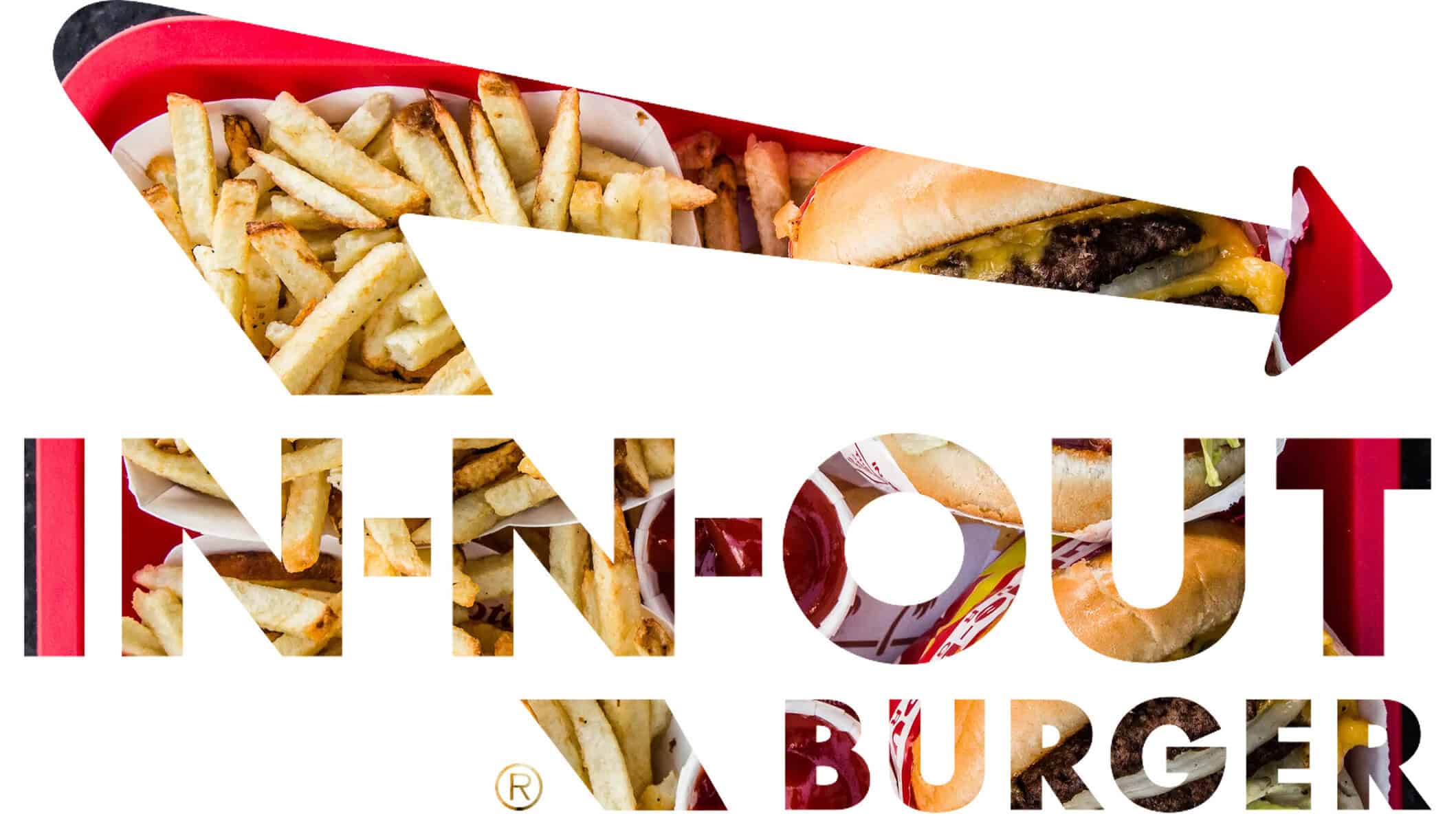
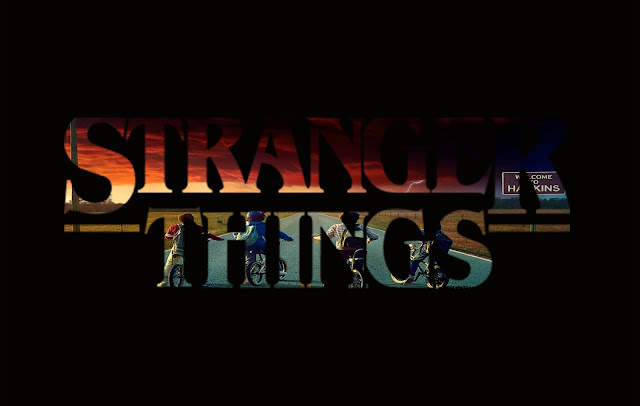
Words or Symbol With Photograph Using Clipping Mask
Setting Up the Project
Step 1:
- Pick a Word or symbol from a movie, band, sports team, business
- Google to find the name online so that you have the official font/logo
- Make sure it is high resolution
- Ex: Stranger Things Font or Stranger Things Logo
- Make sure it is high resolution
- Google to find the name online so that you have the official font/logo
![]()
Step 2:
- Pick an image that correlates with the word or symbol
- Make sure it is high resolution so that it will not be blurred (at least 1000 pixels)
![]()
Photoshop
Step 1:
- File
- New
- 30 Inches width x 17 Inches Height
- Resolution 150
- Background Color White, Black or any other color you would like
- Resolution 150
- 30 Inches width x 17 Inches Height
- New
Step 2:
- Open the word or logo
- Choose Quick Select Tool
![]()
Step 3:
- Select the letters and any other shapes
![]()
Step 4:
- Make sure you have not selected the extra area of letters.
- You need the letters/shapes completely selected
![]()
Step 5
- Choose the Move Tool
- Move the words/symbol onto the canvas
![]()
Step 6:
- The words should take up most of the canvas
- To make the words bigger or small click Control T
![]()
Step 7:
- File
- Place Embedded
- Choose the image
- Click Place
- Choose the image
- Place Embedded
![]()
Step 8:
- The photo will be placed in the middle of the canvas over the words
- Make the photo larger until it covers all of the words
- Click Enter when done
- Make the photo larger until it covers all of the words
![]()
Step 9:
- Make sure you are on the PHOTO layer and not the Words layer
- Go to
- Layer
- Create Clipping Mask
- Your photo will now be inside of the words
- Create Clipping Mask
- Layer
- Go to
![]()
Step 10:
- Move the photograph around until you like what it looks like through the letters
![]()
Step 11:
- Make sure you are on the words/symbol layer
- Click the fx
- Drop Shadow
- Click the fx
![]()
Step 12:
- Blend Mode: Multiply
- Color Black (or any other color you want the shadow to be)
- Opacity:
- Distance: 15 px
- Spread: 0
- Size: 0
- Spread: 0
- Distance: 15 px
- Opacity:
- Color Black (or any other color you want the shadow to be)
- Click Ok
![]()
Step 13:
- Flatten Image when done
- DO NOT at LOGO
![]()