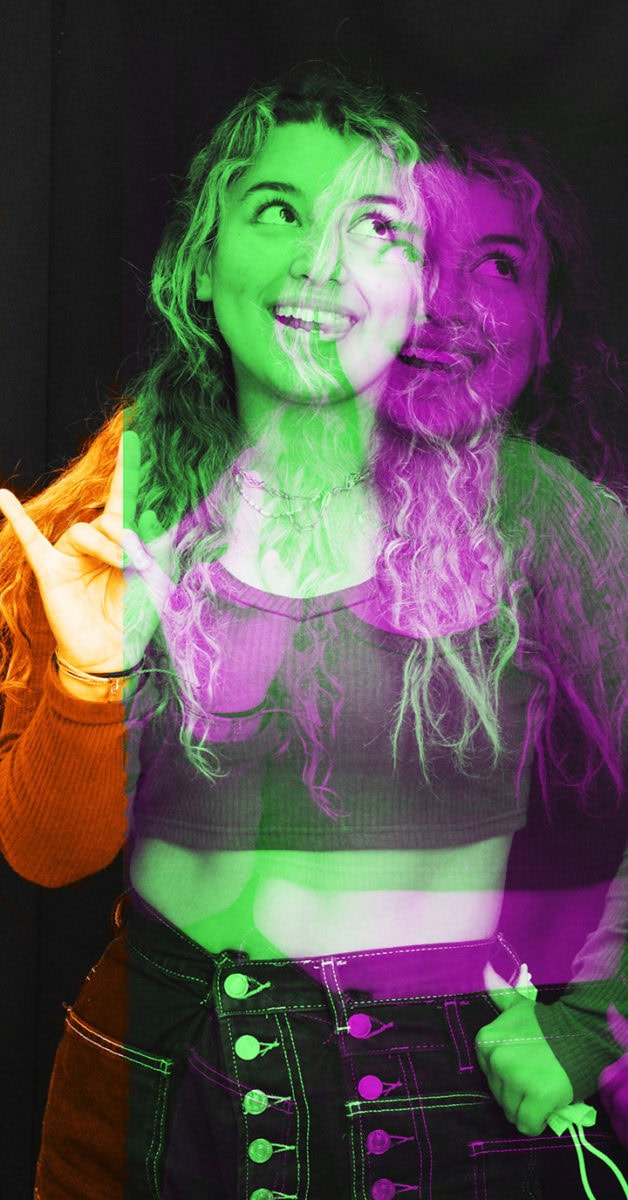
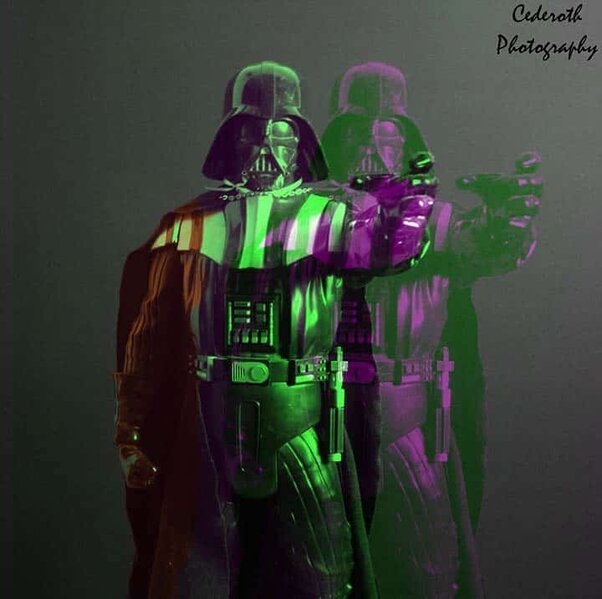
Secondary Colors
Step 1:
Take a photo of a person against the black curtain in the class room
![]()
Step 2:
Turn the photo black and white by going Image- Black & White
![]()
Step 3:
Right click on your Background Layer and Duplicate the Layer
![]()
Step 4:
Pull the Opactity down to 60% on the duplicated layer
![]()
Step 5:
Using the Move tool, move the Duplicated Layer a little toward the right or left, up or down.
It’s up to you but it has to be apart from the original.
Then Click Control-T so you can move it and slightly tilt the photo.
Step 6:
Make sure you are still on the Duplicated Layer
Click the Fx at the bottom of the Layer Pallet
Pick Blending Options
![]()
Step 7:
Below the area that says Advanced Blening
UNCLICK the G. (This will turn your photo from black and white into Green and Purple.)
Right Click on Layers
Flatten Image
Step 8:
Make sure you have Flattened your image and you only have one layer.
Right click on the Background layer and Duplicate the layer
Right click on the Brush Tool.
Pick the COLOR REPLACEMENT TOOL
![]()
Step 9:
Click on the colored boxes at the bottom of the tools.
Pick a nice vibrant ORANGE color
Step 10:
Paint a SMALL area of the photograph with the Orange Color Replacement Tool. You may pick anywhere on the photo to paint the orange
If it is to strong of a color, pull down the opacity.