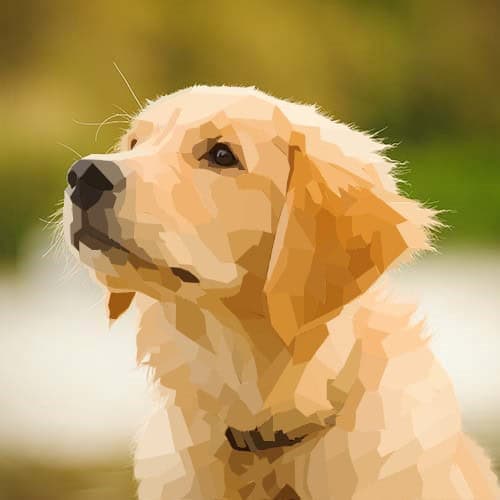
Cubism with Photoshop

Simple geometric shapes placed side-by-side to create angular cubism compositions

To Start:

Pick a High Resolution, close up photo of an animal or person 

Step 1:

  • Select the Polygonal Lasso Tool
    • If you can not find it, right click on the Lasso Tool to reveal

Step 2:

  • Zoom in (Control +)
    • Very close to a small section of your photo

NOTE

  • The Key to making this project look good is to select SMALL sections*
  • Click around a very small section of color
  • DO NOT select a large area


Step 3a:

  • The Polygonal Lasso Tool is very sensitive. If it starts to go crazy jump to step 3b
  • Slowly click the Polygonal Lasso Tool around a small section of color
  • Everytime you click the mouse it will lock in the line you just made
  • If you do NOT click the mouse, the line will keep getting longer (see step 3b to fix)


Step 3b: The crazy Polygonal Lasso Tool

  • If the tool feels out of control……
    • Double click the mouse
      • This will release the tool
        • Always double click the mouse to start the tool over

Step 3c:

  • The line will be solid until the shape is completed
    • The shape will not lock in until the end of the line connects with the beginning of the line
  • Click the mouse when you have completed the shape to lock in Polygonal Lasso Tool
    • The shape will now be marking ants instead of a solid line


Step 4a:  

  • Click Filter
    • Blur
      • Average
  • This will turn the area into a solid color


Step 4b:

  • To release the Polygonal Lasso Tool shape
    • Click the mouse


Step 5: 

  • Make sure you are still using Polygonal Lasso Tool
  • Click around another very small section of color
    • The new section should be TOUCHING the first section of color

Step 6: 

  • Click Filter- Blur- Average
  • This will turn the area into a solid color


Step 7a Eyes: 

The EYEs are the most important section! If the eye is not done correctly the photo will not look real
  • Select the pupil 1st
    • The iris will be 2nd (colored section of eye)
You do NOT want the eye to look like a giant circle of one color

Step 7b: Eyes Highlight 

  • Including the highlight in the eyes is very important


Step 7c:

  • Continue to do very small areas of the eye so that it looks realistic
    • Example below is a done perfectly

Step 8:

  • Continue to select small areas of color on your photo
    • Make sure that you do not leave space between the shapes.
      • Keep creating shapes and blurring until your image is complete
  • REMEBER!
    • The smaller the sections and the more shapes you have the better the project will turn out

Animal Examples

People Examples