Inspired by the work of:

 pol ubeda

i’m not there

by Pol Ubeda

How can we accept that we are changing?
How can we accept we hardly recognize ourselves in certain situations?
I am changing at this very moment of my life.
I do not react in the same ways I used to. I am surprised. Is that me?
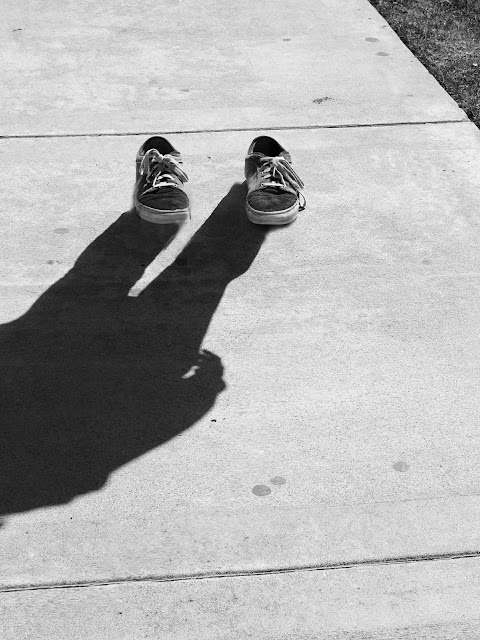
These pictures are the way I see myself now.
My shadow is there but I erase myself because I don´t know who I am any longer.
The shoes remain only to make sure there is something more than… a shadow.

Camera Section:
  • You will need to work with 2 other people.  

  • One to be the model and one to mark the location and move the shoes

  • Using a tripod is HIGHLY recommended

Photo 1

Step 1:

  • Have the person stand where they have a strong shadow 
      • Make sure there are little distraction around them.  The more BLANK space around them the better
        • Take a photo with all of the shadow showing but only the bottom section of the person’s body
  • FREEZE
    • DO NOT move the camera or allow your person to move

Step 2:

  • Have someone put a leaf, stick, tape or other object at the front tip of the shoes
    • This will be our marker for the next photo


Photo 2

Step 1:

  • Have the person take off the shoes
  • Have the person place the shoes where you marked them


Step 2:

  • REMOVE the marker that you used to line up the shoes
 
Step 3:
  • Take a second photo in the exact same location as the first photo
    • Take a photo of just the shoes and no person
      • You should still see the same amount of background as the first photo because you have NOT moved the camera

Photoshop Section:

Step 1:

  • Open both images in photoshop
    • Select the Move Tool 
      • Click on the shoe photo
        • Drag the Shoe photo on top of the shadow photo


Step 2:

  • Click on either layer
    • Hold the shift key
      • Click the other layer so that both are highlighted

Step 3:

  • Go to Edit-Auto Align Layers


Step 4:

  • Pick Auto
    • Click ok
      • Photoshop will align the two photos


Step 5:

  • On the Shoe Layer
    • Lower the Opacity until you can see part of the person/shadow


Step 6:

  • Select the Move Tool
    • As needed: move the shoes so that they line up with shadow


Step 7:

  • When you have the shoes and shadow aligned
    • Make the Opacity 100%


Step 8:

  • On the Shoe Layer
    • Add a Mask (little square at bottom of layers)


Step 9:

  • Choose the Quick Selection or Object Selection Tool
    • Select the shoes


Step 10:

  • Go to Select
    • Inverse
      • The area around the shoe will now be selected


Step 11:

  • Make sure you are on the Shoe layer and click on the white mask
    • Select the Paint Brush Tool 
      • Brush should be Black


Step 12:

  • Paint back in the Shadow


Step 13:

  • If you paint into the person area we can fix it
    • Flip the Brush color to White
      • Paint out the person


Step 14:

  • Go to Select
    • Deselect


Step 15:

  • Make sure you are on the Shoe Layer White Box
    • Zoom in close to see the shoes
      • If there is shadow missing around the shoe
        • Select the Paint Brush and paint in the shadow


Step 16:

  • Select the Crop Tool
    • Crop out anything extra around the photo


Step 17:

  • Right click on Layers
    • Merge Visible

Step 18:

  • Finish by editing the photo