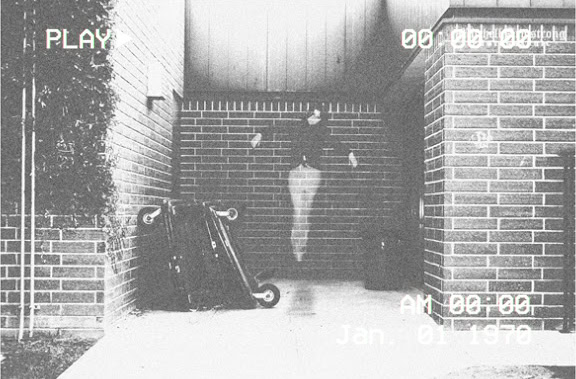
Part 1: Photography Section

  • Take a photo of person 
    • Do not move yourself, the camera or settings
      • Have person run out of the photo
        • Take a second photo in the same spot

Part 2: Photoshop 

Step 1

  • Open both photos in photoshop
    • Select the Move Tool
      • Move the PERSON photo ontop of the Non-Person photo

Step 2:

  • Go to Layers Pallet
    • Click on Layer 1
      • Holding down the Shift key
        • Click on Background layer
          • Both layers will be highlighted

Step 3:

  • Go to
    • Edit
      • Auto Align Layers

Step 4:

    • Pick Auto
      • Click OK

Step 5:

  • Click on Layer 1
    • Decrease the Opacity to make your peson become see-through

Step 6:

  • Select the Crop Tool
    • Cut off any extra area
      • Click Enter
        • Flatten Image


Step 7:

  • Open Photo in ACR (Ctrl-Shift-A)
  • Change the Profile to
    • Monochrome

Step 8:

  • Go to Lighting
    • Move the sliders to create the look you want
      • Exposure
      • Contrast
      • Highlights
      • Shadows
      • Whites
      • Blacks
      • Clarity
Step 9a:
  • Go to Optics
    • Move the Vignette slider left
      • Between -50 to -100 (it’s up to you how much your little you use)
Step 9b: 
  • Pick if you want your photo SLIGHTLY look green/blue/brown instead of black and white
    • Click open Curve
      • Click on the Red, Blue or Green Circle
        • Move the middle circle up SLIGHTLY to make the photo with a tint of color
Step 10:
  • Save one of the Film Grain images from below to the computer


Step 11:

  • Go to File
    • Place Embedded

Step 12:

  • Locate and Select the film grain file you saved
    • Click Place

Step 13:

  • Streach the Film Grain file until it fits over the ghost photo
    • Click and hold the Shift key as you streach the file to fit the entire file over the ghost

Step 14:

  • On the Layers Pallet
    • Click where it says Normal

Step 15:

  • Change Normal to
    • Overlay, Lighter Color or Soft Light or any of the other overlays.
      • Each photo will look different with each overlay

Step 16:

  • If the texture is to strong
    • Go to the texture Layer
      • Make the Opacity lower

Step 17:

  • Add Logo
    • Flatten Image

Examples