Jpeg vs PNG files
- PNG: files that have a transparent background (like your watermark)
- Jpeg: files will have a solid background
PNG file
- Will be transparent when moved onto another image
- Not everything online that says it’s a png is transparent or a real png.
- You must check what type of file it is when you open it in photoshop
- Not everything online that says it’s a png is transparent or a real png.
JPEG file
- Has solid background and will be not be transparent when moved onto another image.
_______________________________________________________________________________
Photoshop:
Step 1
- Open your main image
- Open your file
- If it is a jpeg file you will need to cut it out first
- If it is a png file you can move it over without cutting it out.
- Using the Move tool, drag the file onto the main photo
Step 2
- To Zoom in on the photo
- CTRL +
- To zoom out click
- CTRL –
Step 3
- If the file is to big/small or needs to be rotating
- Click CTRL-T
- This will put a box around it so that you can adjust the size and rotation
- Click CTRL-T
- Click Enter when you are done
Step 4:
- Click on the Layer above the background layer
- Click on the Bottom of the layers pallet
- Click the box that looks like a camera
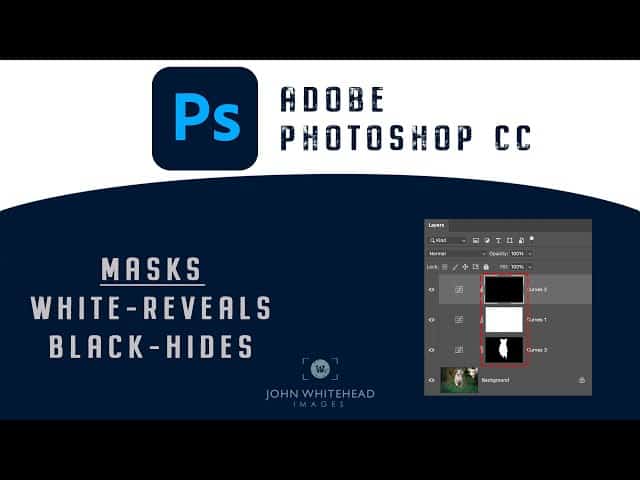
- This will add a mask
- A white box will appear next to the top layer
- This will add a mask
- Click the box that looks like a camera
![]()
Step 5:
- Make sure you are on the image Layer
- Click on Opacity
- Lower opacity until you can see through the image
- This will help you see where you need to paint areas off
- Lower opacity until you can see through the image
![]()
Step 6:
- Click on the white Mask box
- Click on the Paint Brush Tool
- Make sure the colored boxes at the bottom of the tool bar are
- BLACK ontop and White underneath
![]()
Step 7:
- With the brush tool
- Paint out the area you want removed
Step 8:
- If you paint to much off you can paint it back in by
- Switching the brush color to white
- Paint back in what you took off
- Switching the brush color to white
Step 9:
- When you are finished pull the opacity back to 100%