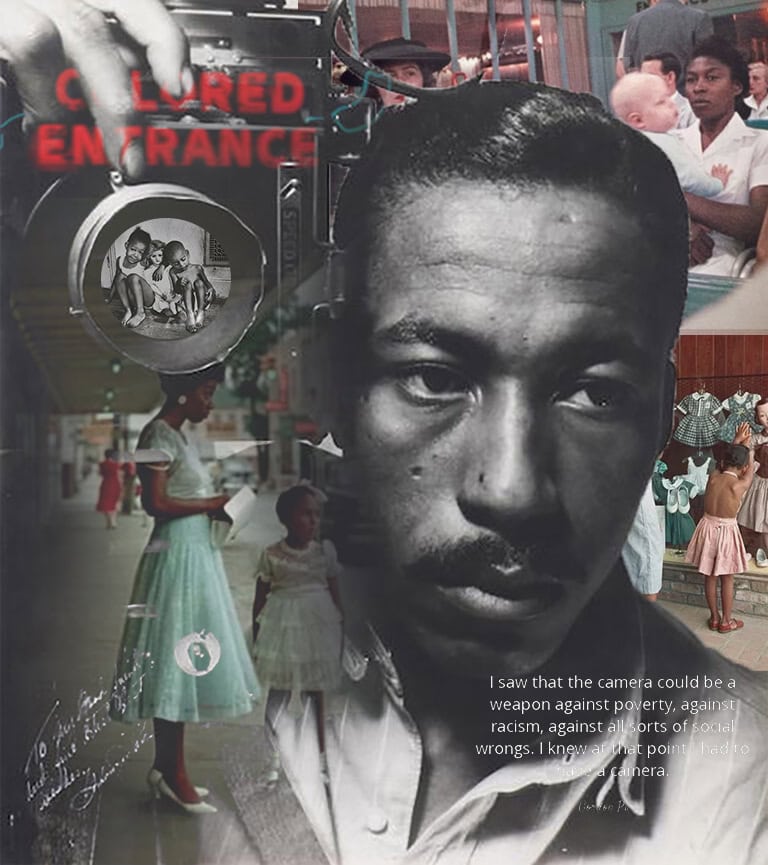
Part 1:  Picking Gordon Parks photos  

Step 1:

  • Save the photograph of Gordon Parks 


Step 2:

  • Pick 3 Colored Photographs by Gordon Parks 
    • They should be images that speak to you
      • You may also use other Gordon Parks photographs which have not been included here
        • Save to computer


Step 3:

  • Pick 3 Black and White Photographs by Gordon Parks 
    • They should be images that speak to you
      • You may also use other Gordon Parks photographs which have not been included here
        • Save to computer


Step 4:

  • Pick 1 Quote from Gordon Parks 


Part 2:  Double Exposure in Photoshop

Step 1:

  • Open the Godron Parks Portrait in photoshop
  • Choose the Quick Selection tool
    • Select all of Gordon Parks and his camera
      • Do NOT select the areas that are not part of Parks or the camera

Step 2:

  • Click Control J
    • this will make a copy


Step 3:

  • Click OFF the eye on the background layer


Step 4:

  • File
    • Place Embedded
      • Choose one of Gordon Parks Colored Photographs you saved
        • I will be using the photograph below but You may use any Colored photograph you saved from section


Step 5:

  • Your photograph will be at the top of the layers pallet
    • Move the photograph until it covers the entire canvas


Step 6:

  • Right click on the colored photograph layer
    • Create Clipping Mask


Step 7:

  • Click on Normal (Top of Layers Pallet)
    • Change to one of the following (each photo will have a different result)
      • Lighter Color
      • Soft Light
      • Lighten
        • Etc


Step 8:

  • Move the image around until you like the placement of it
    • You can make the images bigger or smaller to fit the look you want


Step 9:

  • Add a Mask to the Colored Photograph Layer


Step 10:

  • Select a Black Paint Brush
    • Paint out the face/ shirt area of Gordon Parks
      • Do not take out anything besides his face/shirt


Step 11:

  • Choose the Ellipse Tool
    • Fill:  Black
    • Stroke: White box with red line through


Step 12:

  • Draw a circle inside the camera lens
    • Hold the Shift key to create the correct shape and size circle


Step 13:

  • Lower the Opacity of the Circle between 70%


Step 14:

  • Go to File
    • Place Embedded
      • Select one of the Black and White photographs you saved
        • It will be placed in the middle of the canvas


Step 15:

  • Move the photograph so it’s in front of the black circle you made
    • Reduce the size so it’s just a little bigger than the circle


Step 16:

  • Right click on the Black and White Photograph layer
    • Create Clipping Mask


Step 17:

  • Move the image around until you like the placement of it
    • The image must fit COMPLETELY in the circle and not have space around it


Step 18:

  • Click on the Background Layer (layer with eye that is off)
    • Go to File
      • Place Embedded
        • Choose any Gordon Parks photograph you saved


Step 19:

  • The photograph will be placed behind the Gordon Parks portrait
    • Move the photography toward the top of the canvas and adjust it to your liking
      • You MUST leave the bottom right area open (section with pink box around it).


Step 20:

  • Lower the Opacity to between 80% – 85%


Step 21:

  • Click on the Background Layer (layer with eye that is off)
    • Go to File
      • Place Embedded
        • Choose another Gordon Parks photograph you saved


Step 22:

  • The photograph will be placed behind the Gordon Parks portrait
    • Move the photography toward the bottom right and adjust it to your liking
      • Lower the Opacity to between 80% – 85%


Step 23:

  • Right click on layers
    • Flatten Image


Step 24:

  • Go to File
    • Place Embedded
      • Choose the Quote you saved from Gordon Parks
        • Move the quote to the bottom right of the canvas


Step 25:

  • Go to Normal on Layers Pallet
    • Change to Lighter Color
      • Move the quote around so that it fits with your collage

Step 26:

  • Flatten Image
    • Save