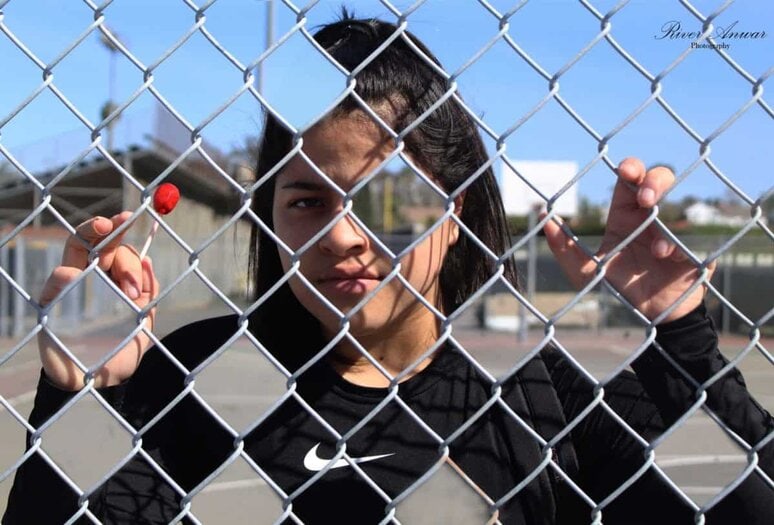
Photography Section

  • Have a person stand behind the fence
  • Have them grab onto parts of the fence
  • Take a Photo of the Person
  • DO NOT MOVE!!! Have the person run out of the shot
  • Take another photo of the fence with out a person


Photoshop

You MUST remove

  • Remove at LEAST 10 sections from the fence

Step 1:

  • Move the Person photo on top of the Fence photo

Step 2:

  • Highlight both Layers on your layers pallet (hold shift key and mouse)

Step 3:

  • Go to   
    • Edit
    • Auto Align Layers

Step 4:

  • Choose Auto

Step 5:

  • Select the Crop Tool
    • Crop out anything extra around the image


Step 6:

  • Click on Layer 1
  • add a Layer Mask (box with circle in it at bottom of layers pallet)


Step 7:

  • Zoom in close 
  • Use the Quick Select Tool to select an area of the person inside the fence
    • Do not select on their face.

Step 7:

  • Select a Black Paint Brush
    • Paint inside the quick selected area

  • Release the quick section area you just painted  
    • Select
      • Deselect 


Step 9:

  • Pick the quick Selection tool
    • Select another section of the person behind the fence


Step 10:

Release the quick section area you just painted  
  • Select
    • Deselect 

Step 11:

  • Continue to Select and paint out sections of the person.
    • Do Not take off more than one spot on the person’s face.
  • Remove at LEAST 10 sections of the Person

Step 12:

  • When you have finished
    • Right click on Layers
      • Flatten Image
  • You MUST edit your image