Setting Up Camera

  • Manual Mode Setting
    • Aperture: f/12 
      • Shutter Speed: Press shutter half way to take a light reading
        • You will be changing the shutter speed until correctly exposure

Photography Section

******Taking Photos to Create HDR*****

  • You will be taking 3 photos
    • each photo will be a different exposure

Photo 1:

  • Correct exposure

Photo 2:

  • Do not move the camera
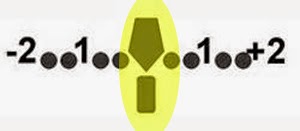
    • Meter again and move the shutter to 1 (Overexposed)

Photo 2:

  • Do not move the camera
    • Meter again and move the shutter to 2 or 3 (Overexposed)


Photo 3:

  • Do not move the camera
    • Meter again and move the shutter to -2 or -3 (Underexposed)
 
 
When all the images are combined in photoshop, you will get a finished image of the car

Photoshop Section 

Step 1:

  • File
    • Automate
      • Merge to HDR

Step 2:

  • Click Browse
    • Select the 3 photos with the different exposures
      • Click OK
        • Photoshop will combine the 3 photos together


Step 3:

  • You will see the 3 images at the bottom of the screen
    • Make sure ALL 3  boxes are checked


Step 4:

  • You will be moving the Adjustment sliders to make your photo pop more
  • The following Adjustments are suggestions ONLY.  You may alter them as needed for your photo
    • Exposure:  Lessen or Increase as needed
    • Detail:  Increase to 300% or a little less as needed
    • Shadow:  Decrease
    • Highlight:  Decrease
    • Vibrance:  Increase to 100% or a little less as needed
    • Saturation: Increase
  • Click OK when done

Step 5:

  • Open the photo in ACR (camera raw)
    • Vibrance:  Increase
    • Saturation:  Decrease or Increase according to your photo
    • Contrast:  Increase
    • Brightness: Decrease or Increase according to your photo
    • Shadows/Highlights: Decrease or Increase according to your photo
    • Temerature and Tint: Decrease or Increase according to your photo

Step 6:

  • Under Color Mixer
    • Move the sliders for the various colors of your image
    • Use Saturation/Luminance/Hue

Step 7:

  • Add Logo in Photoshop
  • Flatten Image
  • Save as PNG 

    • You will NOT be able to save as a jpeg