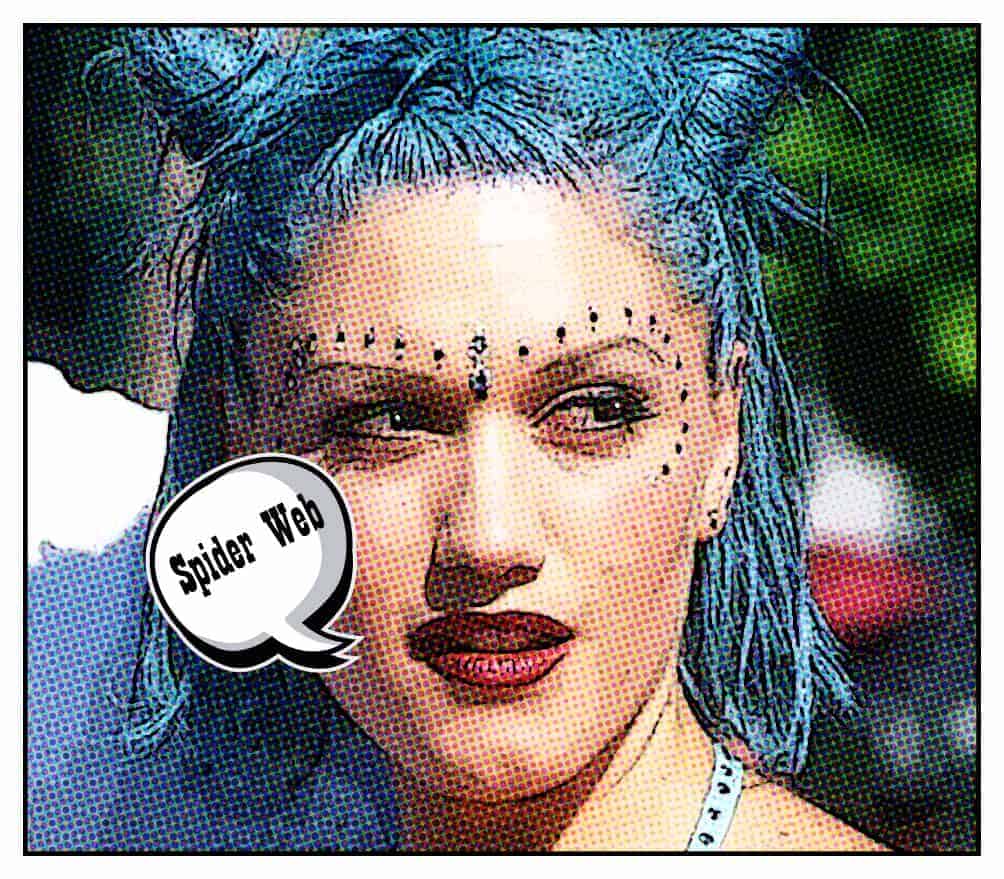
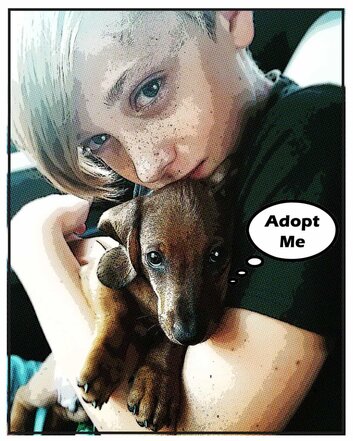
What is POP Art
![]()
![]()
![]()
![]()
Step 1:
- Pick an image from your own work or online
- The image should not have a lot of distractions in the background
- Must be high resolution (1000 pixels or higher)
![]()
Step 2:
- Go to Background on Layers
- Click Control J twice
- You will now have 3 layers
- Click Control J twice
![]()
Step 3a:
- Double Click on Layer 1
- Rename Poster Edges
![]()
Step 3b:
- Double Click on Layer Copy 1
- Rename Color Halfton
![]()
Step 4:
- Click the Eye OFF on Color Halfton layer
![]()
Step 5:
- Click on Poster Edges on Layers
- Go to Filter
- Filter Gallery
- Go to Filter
![]()
Step 6:
- Click and Open Artistic folder
- Select Poster Edges
- Edge Thickness: 2
- Edge Intensity: 1
- Posterization: 2
- OK.
- Select Poster Edges
![]()
Step 7:
- Make sure you are still on Poster Edges layer
- Click Control + to zoom in on the eye
![]()
Step 8:
- Right click on the Rectangular tool
- Select the Elliptical Tool
![]()
Step 9:
- Make sure the following setting are selected
- Fill: White
- Stroke: white box with line through it
- Fill: White
![]()
Step 10:
- Catch Light is a small white section that shows in the eye when light hits it
- Draw a small circle anywhere in the eye
- DO NOT make it to big!
- Draw a small circle anywhere in the eye
![]()
Step 11:
- Click on the layer Elipse 1
- Click Control J
- This will duplicate the catch light layer
- Click Control J
![]()
Step 12:
- Click layer Ellipse 1 Copy
- Select the Move Tool
- Click on the small white circle you made
- Select the Move Tool
![]()
Step 13:
- Move the circle to the other eye
![]()
Step 14:
- Click the Eye on layer Color Halfton
![]()
Step 15:
- Go to
- Filter
- Pixelate
- Color Halftone
- Pixelate
- Filter
![]()
Step 16:
- Return to Layers
- Change Normal
- Soft Light
- Change Normal
![]()
Step 17:
- Click the Eye OFF on the Background Layer
Step 18:
- Right click on Posters Edges
- Choose Merge Visble
Step 19:
- Double Click on Posters Edge layer
- The Layer Style Box will open
- Click Stroke
- The Layer Style Box will open
![]()
Step 20:
- Click on Color
- Change to White
![]()
Step 21:
- Size: 23 pixels
- Position: Inside
- Blend Mode: Normal
- Opacity: 100%.
- DO NOT click OK
- Opacity: 100%.
- Blend Mode: Normal
- Position: Inside
![]()
Step 22:
- Click on
- Inner Glow
- Color: Black
- Inner Glow
![]()
Step 23:
- Blend Mode: Normal
![]()
Step 24:
- Opacity: 100%
- Choke: 100%,
- Size : 25 pixels
- OK
- Size : 25 pixels
- Choke: 100%,
![]()
Step 25:
- Save one of the Thought Bubbles to the computer
![]()
Step 26:
- File
- Place Embedded
- Choice the Thought Bubble you just saved
- Place Embedded
![]()
Step 27:
- The Thought Bubble will show up in the middle of the project
- To make the bubble Smaller or Bigger
- Click on one of the corners and change the size
- To make the bubble Smaller or Bigger
![]()
Step 28:
- Select the Text Box Tool
- Draw a Text Box over the Thought Bubble
![]()
Step 29:
- Type in a Word or Short Phrase to go with your image………get creative……must be appropriate
![]()
Step 29:
- Pick a Color
- Pick a Font that looks cartoonish
- Pick a Font Size that fills up most of the bubble
- Pick a Font that looks cartoonish
![]()
Step 29:
- If your text need to be tilted
- Click the Text Layer
- Click Control T
- Rotate the Text until it fits in the box
- Click Control T
- Click the Text Layer
![]()
Step 30:
- Right Click anywhere on Layers
- Flatten Image
- Save on Computer
- Flatten Image