![]()
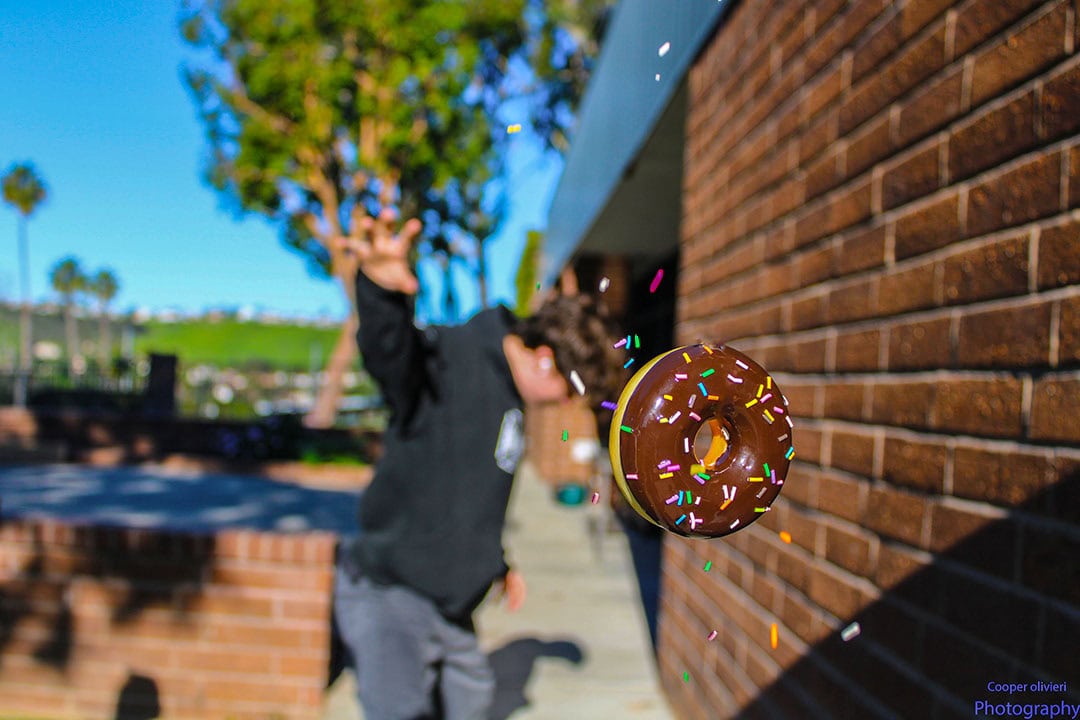
Donut Floating
Camera Settings:
- Low F/stop and a Fast shutter speed for this photo
- Set Camera to Manual Mode
- Set your Aperture to F/1.8 – F/5.6
- Set your ISO according to your light or keep on auto
- Change your shutter speed for a fast shutter and proper exposure
- Set your ISO according to your light or keep on auto
- Set your Aperture to F/1.8 – F/5.6
- Set Camera to Manual Mode
Photography Section:
**************You will need 2 other people to help you take this photo***********************
- 1 person holds the donut on the string close to your camera
- 1 person is farther away with their hand out as if they are throwing the donut
![]()
- The photographer will zoom in on the donut but make sure you can still see the person behind
- Focus on the donut
- Person blurred in background
- Person holding the donut will start to drop the sprinkles
- Do not drop the sprinkles all at once
- Take photograph as sprinkles fall
- Do not drop the sprinkles all at once
![]()
Photoshop Section:
We will be editing out the string and adding more sprinkles in steps 2-7
Step 1
- Edit the photo in Camera Raw to fix colors/exposure/etc
Step 2
- Open back into Photoshop when done fixing colors/exposure
- Zoom in on the donut area with the string showing
![]()
Step 3
- Select the Lasso Tool
- Draw around the string as close as you can
![]()
Step 4
- Click Backspace
- Contents: Content-Aware
- Blending
- Mode: Normal
- Opacity: 100%
- Click OK
- Opacity: 100%
- Mode: Normal
- Blending
- Contents: Content-Aware
- Most of the string will now be gone
![]()
Step 5
- Any thing left that looks off remove with the Cloan Stamp Tool
- Click and hold the ALT Key and Mouse
- to select the area to copy
- Click over the area you would like to remove
- Repeat to remove all the string
- Click over the area you would like to remove
- to select the area to copy
- Click and hold the ALT Key and Mouse
![]()
Step 6
- If you would like to have more sprinkles around the donut
- Quick Select around a sprinkle
![]()
Step 7
- Click Control J
- This will make a copy of the selected area in a new layer
![]()
Step 8
- Select the move tool
- Move the sprinkles to another part of the photo
- Lower the opacity if it looks fake
- Repeat steps 6-8 for more sprinkles
- Lower the opacity if it looks fake
- Move the sprinkles to another part of the photo
![]()