Shephard Fairey

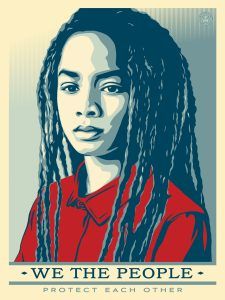
We the People Inspired Poster

_________________________________________________________________________________________

 “Art is not always meant to be decorative or soothing, in fact it can create uncomfortable conversations and emotions”.    – Shephard Fairey

________________________________________________________________________________________


Example Projects


_____________________________________________________________________

Section 1

Picking & Saving Images

  Step 1a:

  • Pick an Image that shows a clear and close up portrait
  • No FULL body images
  • The image must be high resolution (1000pixels or more)
    • This project will NOT work with low resolution photos
      • The photo has to have LOTS of light on the face
        • Hard dark shadows will NOT work on this project

                                                 NO                                                               


YES Photos


Step 1b:

  • Refer to the symbols Shepard Fairey uses in his art work
      • Stars
      • Simple shapes such as arrows
      • Doves
      • Peace signs
      • Flags of countries
      • Roses
      • Money
      • Torch
      • Mandalas
      • Ect.
  • Download 3-5 images that Shephard Fairy would use in his artwork
    • You MUST do at least 3 but using more always looks great
      • Search online for images or
        • Use my files on canvas

Examples of Images/Symbols


____________________________________________________________________

Section 2

Downloading Editing Files

Step 1: If not in my class g0 to the website to download a file Gradiant Presets

  • If you are in my class you will be downloading 2 files from Canvas
    • Canvas- Files
      • FX Gradient
        • Texture Lab 40/60 Vectortones   
        • Texturelabs_Vector_125


_________________________________________________________________

Section 3

Editing the Symbols

Step 1: 

  • Open one of the symbols you saved in Photoshop
    • Go to Filter
      • Filter Gallery


Step 2: 

  • Pick Cutout (below are suggested adjustments but you can change them according to your photo)
    • Number of Levels:  8
      • Edge Simplicity:  0
        • Edge Fidility: 1
          • Ok


Step 3: 

  • Pick the Quick Selection Tool
    • Select your object


Step 4: 

  • Click the Mask Box at bottom of layers pallet
    • It will delete the background
      • Right Click
        • Convert to Smart Object


Step 5a: 

  • Click the adjustments (black/white circle) at bottom of Layers Pallet
    • Pick Black and White


Step 6:

On the computer, go to the Downloads Folder

      • Locate the file you downloaded in Section 2
        •  fx Gradient  1Texture Labs_4060
          • Douple click on the file
            • Nothing will happen that you can see but it will be loaded into Photoshop


Step 7a: 

  • Click the adjustments (black/white circle) at bottom of Layers Pallet
    • Pick Gradient Map


Step 7b: 

  • When the Gradient Map bar opens
    • Double Click anywhere on the bar


Step 7c: 

  • Scroll to the bottom of the Gradient Editor
    • When you get to Texturelabs_4060_vectortones
      • Open the folder

Step 7d: 

  • When you’ve opened the Texturelabs_4060_Vectortones folder
    • Pick one of the colored boxes
      • I recommend using  the first box (red/yellow) or the box right below it  but you are free to pick any of the other boxes.


Step 8: 

  • Right Click on your bottom layer
    • Merge Visable
      • (DO NOT FLATTEN)


Step 9: 

  • You will be saving the image as a PNG
    • Save the file into downloads
      • Name it something you can find easily
        • Save as PNG


Step 10: 

  • Repeat steps 1-9 for all of your symbols/images
    • Skip Step 6.  You have already loaded the file and it does not need to be repeated
      • Pick different colors Texturelabs_4060_Vectortones folder or keep them all the same.  It’s up to you


_______________________________________________________________________

Section 4

Putting the project together

Step 1: 

  • Open the image of the person you picked
    • Go to
      • Image – Image Size
        • Change Height:  15
          • Width size does not matter. It will change automatically.
            • Resolution: 150


Step 2: 

  • Pick the Quick Selections Tool
    • Select around the person


Step 3:

  • Click the Mask at the bottom of the Layers Pallet (box with circle in it)
    • Your background will now be gone


Step 4:

  • Right Click on the person layer
    • Convert to Smart Object


Step 5:

  • Go to Filter
    • Filter Gallery
      • Cut Out
        • Levels 8
          • Edge Simplicy 0
            • Edge Fidely 1


Step 6:

  • Right click on Layer 0
    • Duplicate Layer

Step 7:

  • (If you are in my class you can download this file from Canvas)
  • If not in my class
    • Go to website and download  file  Vector 125
      • Download
        • TextureLabs_vector_125    


Step 8a:

  • Make sure you are on the Bottom Layer
    • Go to File
      • Place Embedded


Step 8b:

  • Pick the file
    • Texturelabs_Vectir_125.eps
      • Click Place


Step 9:

  • The file will now be between the layers
    • Click Control T
      • Move the file until the lines go off the page
      • Change the Opacity to 75%


Step 10:

  • Right Click on Layer
    • Flatten Image

Step 11:

  • Click on the Adjustments circle (bottom layers pallet)
    • Gradient Map


Step 12:

  • When the Gradient Map Graph opens up
    • Click anywhere in the middle of the graph.  It doesn’t matter what color it is


Step 13:

  •  Open Texturelabs_4060_Vectortones   (Bottom Folder)
    • Pick the second box (blue/yellow)
      • (If you do not like the blue/yellow you can try another one of the colors except the reds)
        • Click ok


Step 14:

  • Right click on Background Layer
    • Flatten Image


Step 15a:

  • Go to FilePlace Embedded
    • Choice one of the objects you edited for the poster.
      • The object will open on your project
        • (I will be picking the Arrow)


Step 15b:

  • Select the Move Tool
    • Move the object anywhere on the photo
      • Click Control T to change the size
        • Do NOT make the object to small or to big!!!!!!!!!!!


No

                                              Yes


Step 15c:

  • If you want to make the image transparent (see arrow below)
    • Change the Opacity to 60%-80%
      • Each symbol will be different
        • You do not have to do this to every symbol


Step 15d:

  • You can also change the overlays on the symbol
    • Go to normal on layers pallet
      • Change the overlay to your choice
        • You may change overlays on this symbol or all.
        • It is up to you how to design this step


Step 16:

  • Go to File- Place Embedded
    • Choice another objects you edited for the poster.  (I will be picking the rose)
      • Move the object where you’d like it on the photo.
        • Click Control T to make bigger or smaller
          • Decide if you want to change the overlay


Step 17:

  • Continue until you have at least 3 objects on your image.  You may do more if you’d like
    • Flatten your image when you are done with this section


Step 18:

  • Right Click on Background Layer
    • Duplicate Layer

________________________________________________________________________________________


Step 19:

  • Make sure you are on the duplicated layer
    • Quick Select the lips (or other small area you will be turning red
      • This does NOT have to be the lips
        • ****If you do NOT want the person to have colored lips you may quick select another small section of your image*****


Step 20:

  • Select the Eye Dropper Tool
    • Click over any red area on you image


Step 21:

  • Select the Brush Tool
    • Paint over the area you quick selected


Step 22a:

  • Change the Opacity to 10% – 50%
    • The lower the opacity the less red it will be


Step 22b:

  • Click Select at the top
    • Deselect to remove lines around object
      • Right click on Layers Pallet
        • Merge Visible when done


Step 23:

  • Select the Eye Dropper Tool
      • Click anywhere in the light yellow area
        • This will select this color


Step 24:

  • Go to Image
    • Canvas Size


Step 25:

  • You will be adding 2 inches to both the height and the width
    • It will start at 15 inches
      • Change it to 17 inches
  • Everyones Width will start at a different size
        • Add 2 inches to your width
  • DONT click OK yet!


Step 26:

  • Click on Canvans extension color:  Other
    • A box of colors will open
      • Click on the Yellow colored box at the bottom of the tools panel
        • Click Ok


Step 27:

  • You will now have a 2 inch yellow boarder around your image
    • NOTE……You want to make sure the added yellow area is the SAME color yellow as the rest of your project.
      • Right Click on Layers Pallet
        • Flatten image

Step 28:

  • Pick the Eye Dropper Tool
    • Click on a dark blue area from your project

Step 29a:

  • Select the Rectangle Tool

Step 29b:

  • Fill:  White box with red line through it
    • Stroke: The blue color you just picked
      • 6.4 pt


Step 30:

  • With the Rectangel Tool
    • Draw a box around the project
      • Should just touch the tips of the lines


Step 31:

  • Go to Layers Pallet
    • Rectangle 1 Layer
      • Change Opacity between 50-60%


Step 32:

  • Flatten Image

Section 5

Extra Credit Step (Optional)

Step 1:

  • Go to Google Images
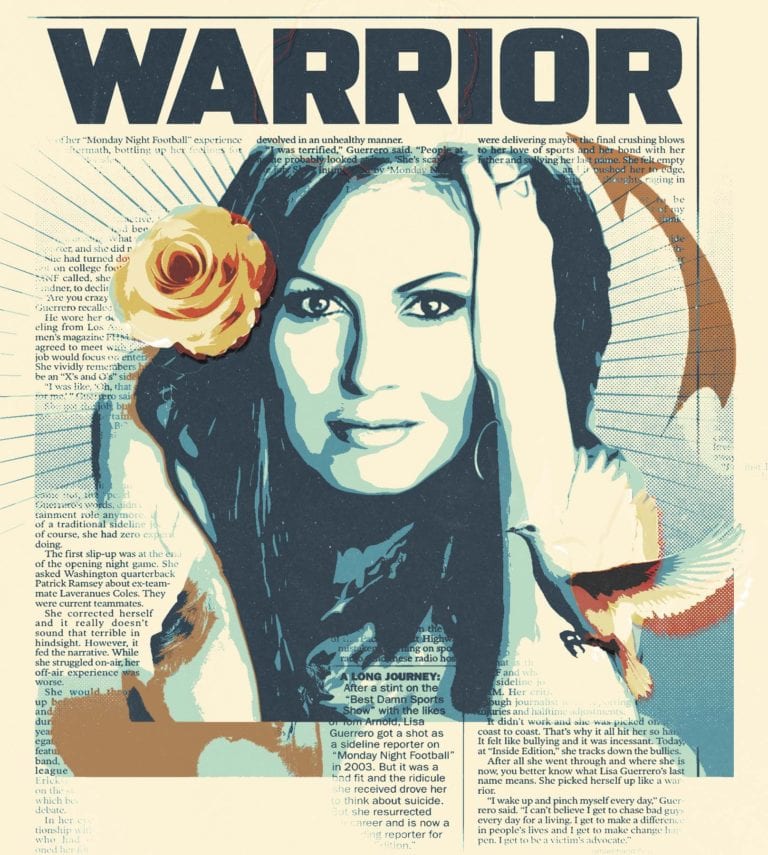
    • Name of your person + Black and White Article
      • Ex: Drew Barrymore black and white article
  • Find an article about the person and save it
    • You are looking for images with lots of Text

Step 2:

  • Return to your project on Photoshop
    • Go to
      • File
        • Place Embedded
          • Pick the article you saved


Step 3:

  • Go to Layers Pallet
    • Change Normal to Multiply

Step 4:

  • Lower the Opacity so the article becomes more transparent:
    • 25% –  50%.
      • Every image will be different

Step 5:

  • Add a Mask to the Article Layer
    • Select a Black Paint Brush


Step 6:

  • Paint off  words and images you do not want
    • Removing text on the Person’s face is important


Step 7:

  • Flatten Image and Save