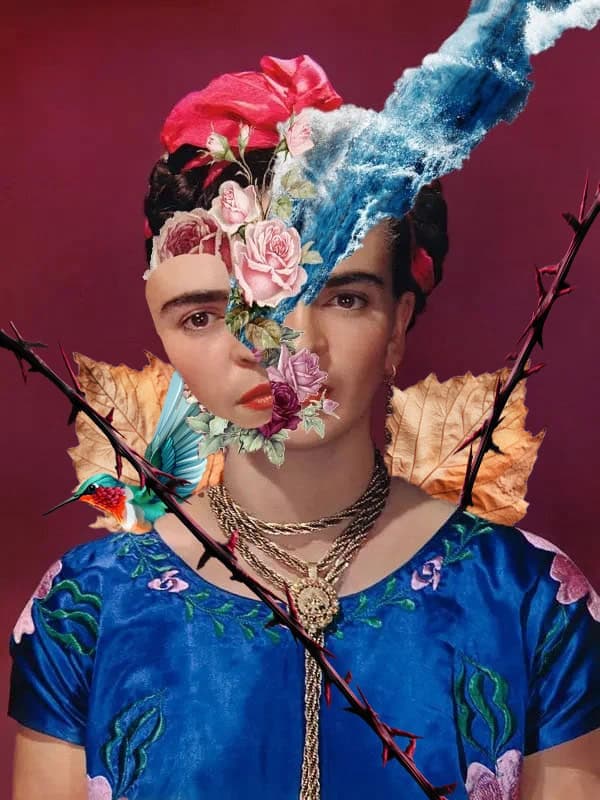
Frida and Annie Leibovitz

2002, Annie Leibovitz photographed Salma Hayek as her artist Frida Kahlo for Vogue Magazine.  Salma Hayek stars as Frida Kahlo in the biographical film ( Frida ) about the Mexican surrealist artist.

__________________________________________________________

Annie Leibovitz Section

Choose a Portrait Photograph Leibovitz


Pick and save a portrait photographed by Annie Leibovitz from below

or

  • Google a portrait which Leibovitz photographed
    • Be careful when searching, as not every photo online that says it’s Leibovitz is really her work
    • Choice a Headshot that is high resolution (1000 pixels or higher)
      • No full body photos


____________________________________________________________________________________________________

Photography by: Annie Leibovitz


__________________________________________________________________________________________________

Frida Kahlo Section

Symbolism in Frida’s paintings 


  • Thorns,  Hummingbirds, Butterflies:  Symbolizes pain and resurrection
  • Animals & Nature: Jaguars, parrots, and dogs (like her Xolotl) represent her love of Mexico
  • Skull: Life and Death and Day of the Dead
  • Roots & Vines:  Connection to Mexico and inability to escape her pain
  • Flowers: fertility, growth, and connection to the earth


_______________________________________________________________________________________________

PNG Files

You may use the files provided or find your own PNG files

Image 1:  Flowers/Folaige/Cactus

  • Choose and Save 2 images from below or find your own


Image 2:  Roads/waves

  • Choose and Save 1 images from below or find your own


Image 3:  Leaves

  • Choose and Save 2 images from below or find your own

Image 4:  Vines/Thorns

  • Choose and Save 3 images from below or find your own

Image 5:  Bird/Butterflys/Deer Antlers

  • Choose and Save 3 images from below or find your own


Photoshop Project

Step 1:

Open the Annie Leibovitz photograph in photoshop

Step 2:

  • Select the Lasso Tool
    • Carefully draw around a section of the eye and check
      • It should look like the shape of a bean


Step 2:

  • Go to
    • Edit
      • Copy

Step 3

  • Go to the Layers Pallet
    • Click the + sign at the bottom of the layers pallet
      • This will create a new layer

Step 4

  • Make sure you are on Layer one
  • Go to Edit
    • Paste
      • The section you cut out of the face will now be on Layer 1

Step 5

  • Go to Select
    • Load Selection
      • When the box pops up, click OK
        • The face will now have the selected section showing

Step 6

  • Go to Layers Pallet
    • Click on the Background Layer
      • Click on the black/white circle at the bottom of Layers Pallet
        • Pick Solid Color

Step 7

  • The color picker will show up
    • Choose a dark brown color

Step 8

  • Click on Layer 1
    • Click Control- T
      • Move the cutout slightly away from the face
        • Slightly tilt the face cutout
          • Move it around until you like how it looks

Step 9

  • Click on the brown color on the Color Fill 1 Layer (not the black box)
    • Click fx at the bottom of layers
      • Click Blending Options

Step 10

  • Click where it says Inner Shadow (MUST click on the words Inner Shadow and not just check the box)
  • Blend Mode to Normal
  • Opacity- 100%
  • Distance- 15
  • Choke- 0
  • Size- 0
  • Click ok when done

Step 11:

  • Open in Photoshop a file of Flowers/Folaige/Cactus
    • Select the Move Tool
      • Move the PNG file onto the person
        • Make sure the flower file is Below Layer 1 and Upove Color Fill

Step 12:

  • Click Control- T to make the image bigger or small and  rotate
    • Move the flowers/image around until you like it

Step 13:

  • Pick a second file 0f flowers/foliage
    • This can be the same flowers or a different flower/foliage
      • Move flowers onto the face image
        • Click Control – T
          • Make the flowers bigger or smaller, rotate and move it around

Step 14:

  • Open the file of a wave or road
    • Select Move Tool
      • Move file onto the person
        • This Image must be on the OPPOSITE side of the face that was cut out


Step 15:

  • The road/wave MUST  be Below Layer 1 and Ubove Color Fill
      • The road/wave  MUST be underneath the flowers layer

Step 16.

  • Click Control T to change the size of the image
    • Move the road/wave so it is going OFF the edge of the PAGE
  • Right Click on Layers
    • FMerge Layers

Step 17.

  • Choose the Quick Selection Tool
    • Select the entire person and any objects you added (wave/road/flowers/ect)

Step 18

  • Click Control  J
    • This will make a copy of the person

Step 19

  • Go to File
    • Place Embedded

Step 20

  • Choose one of the thorn/vine/twig images
    • Click Place

Step 21

  • Select the Move Tool
    • Move the image over the chest area of the person
      • Control T
        • To make the image bigger, longer or tilted Click

step 22

  • Click Control J
    • This will make a copy of the vine/thorn/twig
      • Select the move tool
        • Move thorn/vine/twig to a different spot on the body

Step 23

  • We now want the vine to go UNDER the person
    • Click the layer of the thorn/vine
      • Move the layer ABOVE the person layer


Step 24

  • Click on the Background layer

Step 25

  • Go to File
    • Place Embedded
      • Pick a Bird/Butterfly/Antler
        • Click Place

Step 26

  • Make sure this new layer is UNDER the Person Copy layer
    • Click the Move tool
      • Move the image coming from behind the person
        • Click Control T to make it bigger/ small/ turn

Step 27

  • If the object looks to bold/fake
    • Reduce the opacity slightly

Step 28

  • Go to File
    • Place Embedded
      • Pick a Leaf
        • Click Place
          • Move the leaf so it’s coming from behind person

Step 29a

  • Click Control J
    • This will make a copy of the leaf
      • Select the move tool
        • Move the leaf to a different spot on the body

Step 29b

  • If you would like more leaves you can continue to click
    • Control J and make more leaf copies
        • or
  • You can add different leaves by going to
    • File- Place Embedded


Step 30:   Moving around the images in layers

  • If you want an object ontop or another object
    • Move the layer up
      • (example the leaf moving from on top of bird to under the bird)


Step 31a:  Optional Step

  • If you would like to change the color of an object you added
    • Click on the layer of that image
      • Go to Image
        • Hue/Saturation

Step 31b:

  • Move the Hue slider
    • I turned the Green vine to a purple/blue to match the color of the project

Step 32:

  • Continue to add objects until you like the result of your project
      • When you are finished
        • Right Click on Layers Pallet
          • Flatten Image